


EmailTooltester is supported by readers like you. When you purchase through our links, we may earn a commission that helps keep our reviews independent and free.
Ready to cancel your Mailchimp subscription? Whether you're looking for a more affordable option, different features, or simply a change in your email marketing strategy, there are a few things to consider before you hit that “cancel” button.
In this article, we’ll explain how to cancel your Mailchimp account, step by step, and highlight key things to think about before and after canceling, including:
- How to back up important data like contacts, email templates, and reports, to make sure nothing important is lost
- Which email service providers (ESPs) offer direct imports from Mailchimp to make the switch easier, and
- How switching to a new provider might affect deliverability – and what you can do about it.
If you're looking to cancel your Mailchimp subscription and migrate to a new ESP, here’s everything you need to know to make the process as smooth as possible.
Why you might want to cancel Mailchimp
Deciding to cancel your Mailchimp subscription can feel like a big step, but rest assured – you’re not alone! Many small businesses and marketers (including our own team!) have made the switch for various reasons.
For some, it’s a matter of pricing. While Mailchimp offers a free plan, the costs of its paid tiers can become overwhelming as your contact list grows, especially as inactive contacts are (unfairly) included in your billable contact count. You might find that there are more affordable options out there with similar or even better features.
We break it down in more detail in the following video:

Others have found that Mailchimp’s expansion into an all-in-one platform doesn’t always align with their needs. If you’re only focused on email marketing, paying for extra features you don’t use can feel like a waste. If this sounds familiar, switching to a simpler, more focused email service provider (ESP) could save you time and money.
At the end of the day, it’s all about finding the tool that fits your business. Whether you're looking for something more cost-effective or a platform that feels more intuitive, there are plenty of great alternatives to Mailchimp. And rest assured, making the switch is easier than it might seem!
Before cancelling: Important considerations
Before you cancel your Mailchimp subscription, it’s essential to take a few key steps to ensure a smooth transition and avoid any disruptions to your email marketing efforts.
1. Back up data
The first and most important task is to back up your data so you don’t lose anything once you cancel your Mailchimp account. This includes exporting your contact lists, email templates, reports, and any automated workflows you’ve set up.
One of the easiest ways to do this is to use Mailchimp’s “Export Data” feature, which allows you to export the following information into a single ZIP file:
- Emails (including HTML and TXT files)
- Audiences (including non-subscribed and unsubscribed contacts)
- Reports
- Templates
- Gallery (image and media files)
- SMS data
- API-generated custom events, including timestamps and the email address of the contact who created the event.
- Appointments booked
- Ecommerce orders and products
You can do this by going to Profile > Settings > Manage my data > Export data. Just check the box next to the data you want to export, and choose the date range. Note: if you have a lot of data, you may need to allow up to 24 hours for the export to complete.
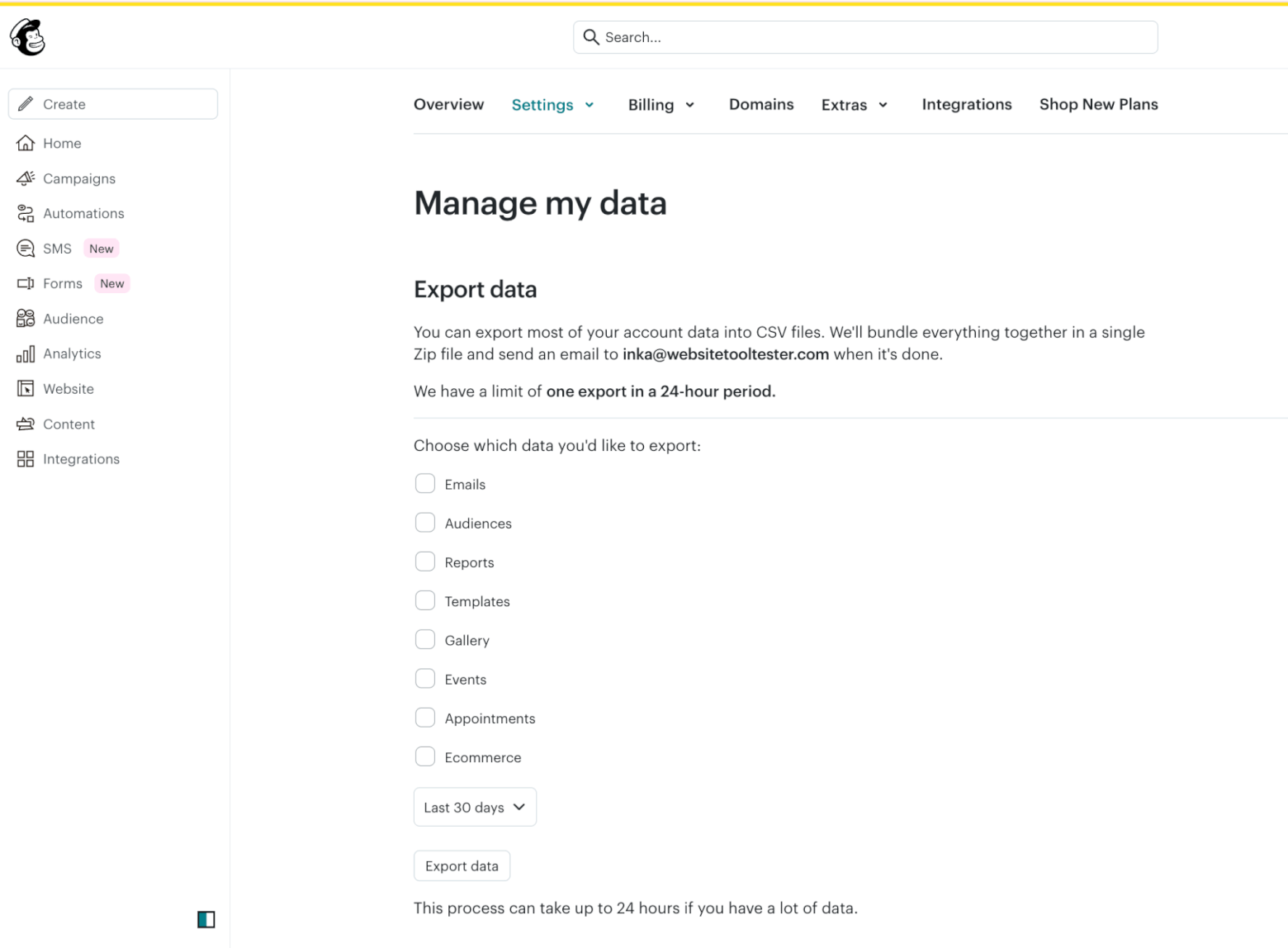
It’s also important to note that this feature doesn’t allow you to export automations, deleted audiences, billing statements, or non-email content (e.g. website, landing pages, ads). If you want to keep this data, make sure to save it manually.
2. Import data to your new ESP
If you plan to switch to a new email service provider (ESP), many platforms offer easy imports from Mailchimp through either direct plugin tools or personalized migration support (which is often provided for free). Here’s a quick rundown of what’s offered by some of the most popular Mailchimp alternatives:
Brevo
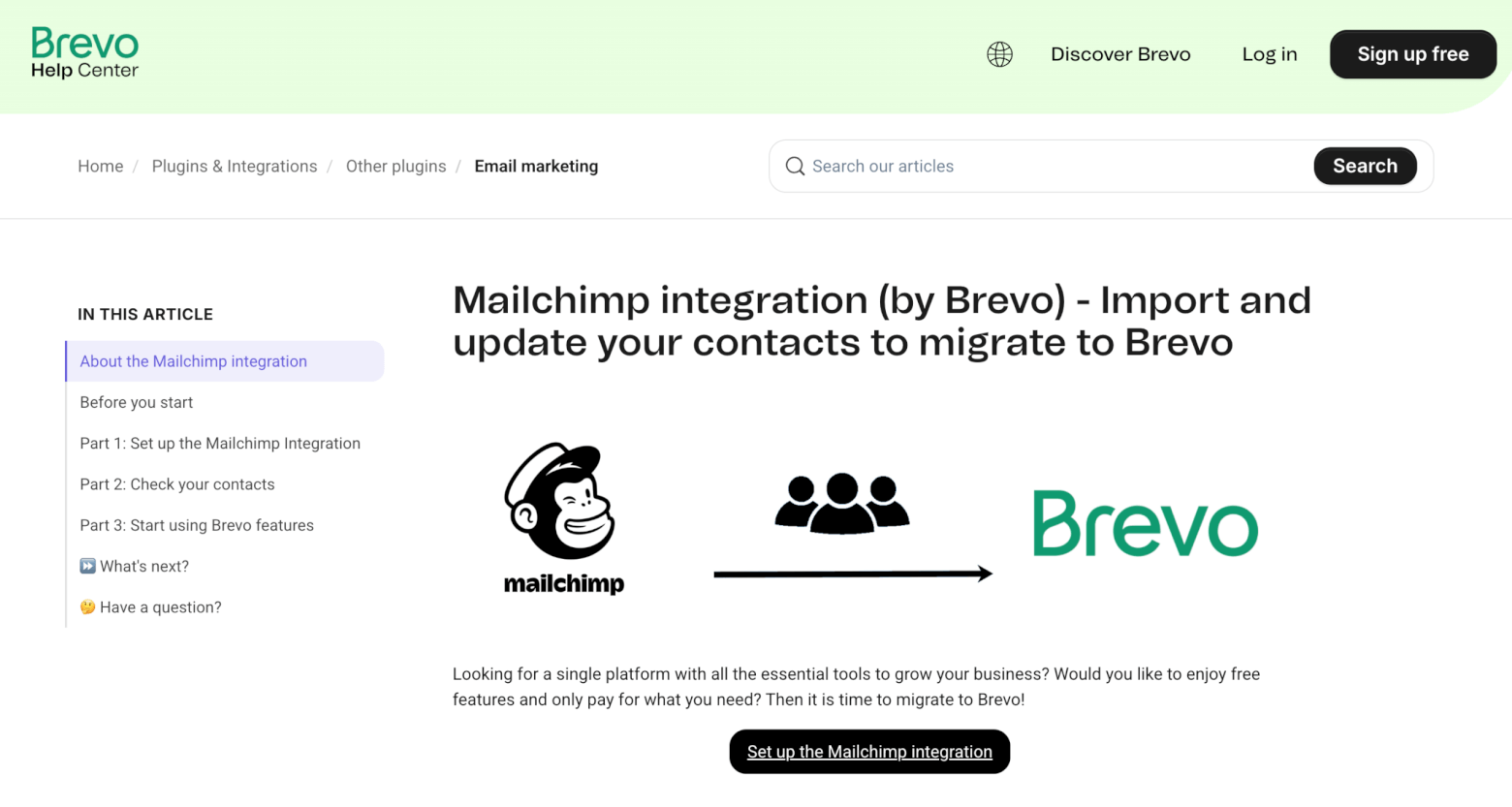
Brevo is an affordable, all-in-one sales and marketing platform that serves as a powerful alternative to Mailchimp. It provides an official Mailchimp integration that lets you sync contacts from Mailchimp to Brevo at a set frequency. You can select which lists to import and map Mailchimp contact fields to Brevo attributes. The integration can also keep new and updated contacts in sync after the initial import.
> Learn more about Brevo vs Mailchimp in our detailed comparison
Omnisend
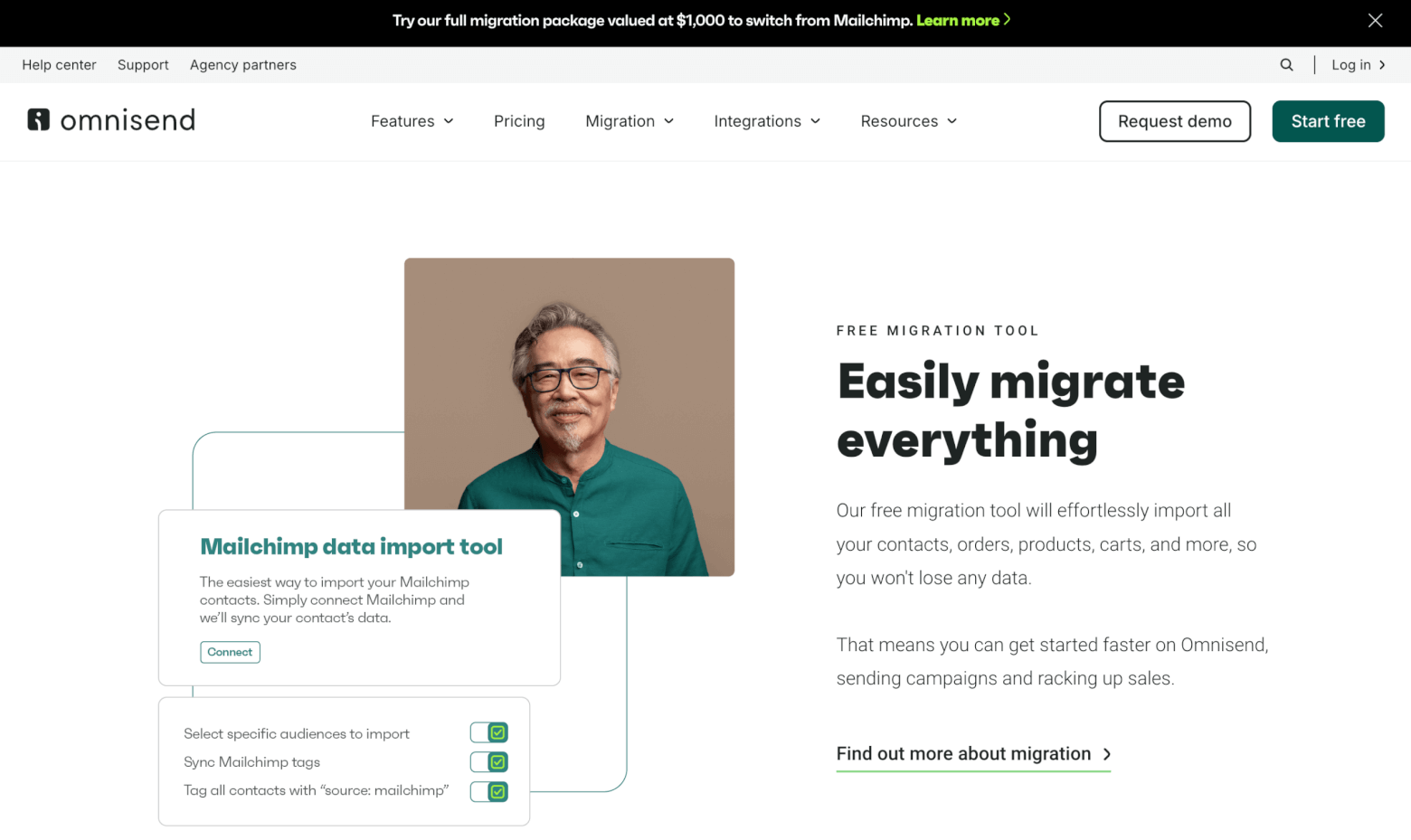
Omnisend is our top choice for ecommerce and online store owners. Its migration tool lets you connect your Mailchimp account and automatically import your contacts, including their subscription status, tags, custom properties, and engagement data (such as open and click rates). It can also bring over some store‑related data like orders, products, and carts when used with ecommerce store connections.
On top of that, Omnisend’s free Kickstart Migration service will help you migrate up to 3 automated workflows, 5 segments, 3 signup forms, and 1 template.
> Learn more about Omnisend vs Mailchimp
MailerLite
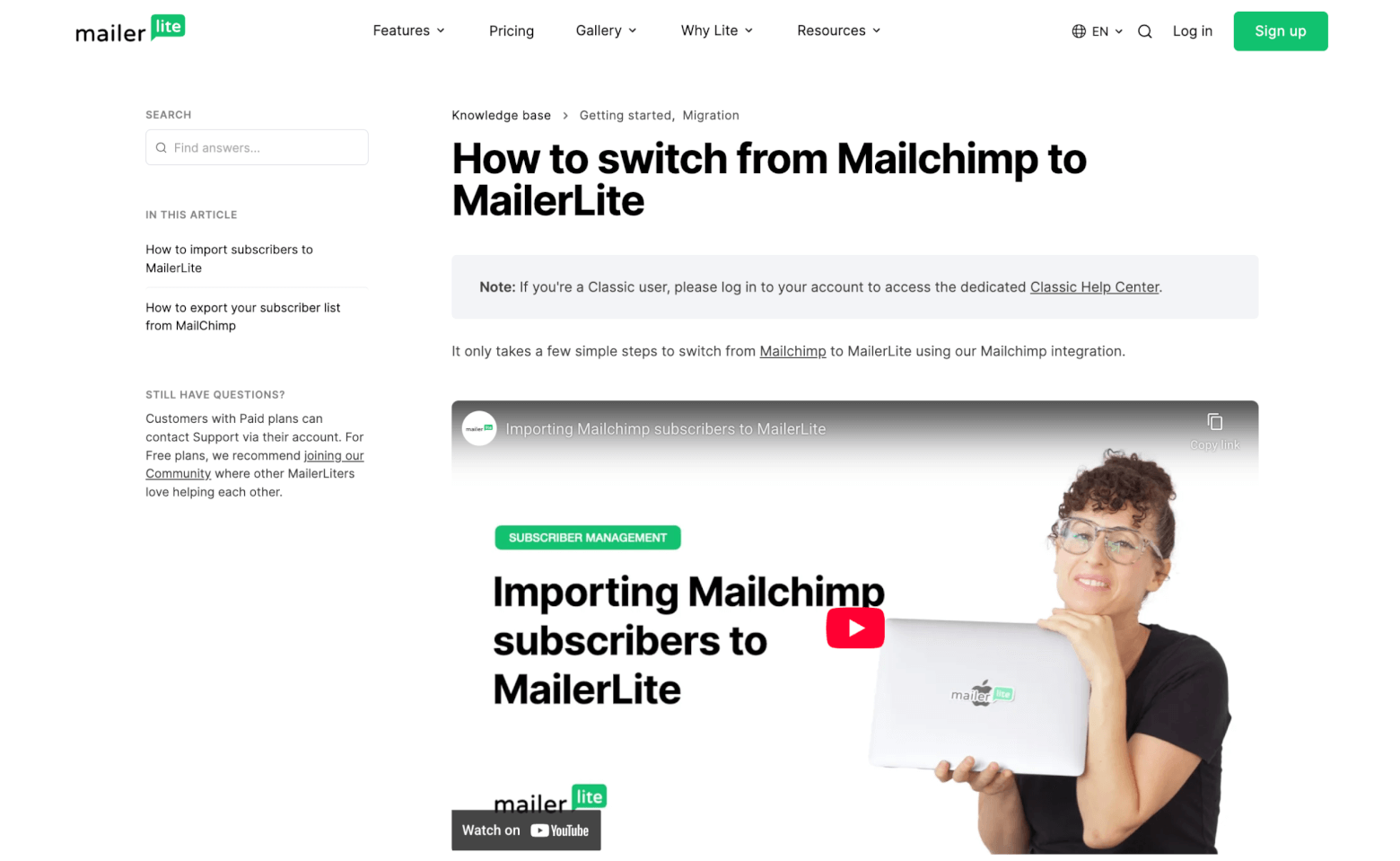
MailerLite is one of the most affordable and easiest-to-use Mailchimp alternatives. It offers a built‑in Mailchimp import tool that allows you to connect and import subscribers directly from your Mailchimp account. This includes list members, and you can map fields between the two platforms during the import process.
> Learn more about MailerLite vs Mailchimp
> Check out our Mailchimp to MailerLite migration guide
Kit
Kit has been a longtime favorite of creators and newsletter publishers. It offers a direct importer for Mailchimp contacts. You can connect your Mailchimp account via API and bring your contact list (including custom fields, tags, and segmentation data) into Kit automatically.
They also offer a free migration service for users with over 10,000 subscribers, where they rebuild up to 20 forms, 50 automation emails, 3 templates, 4 integrations (10 connections), and 30 lists/segments on your behalf.
> Learn more about Kit vs Mailchimp
Klaviyo
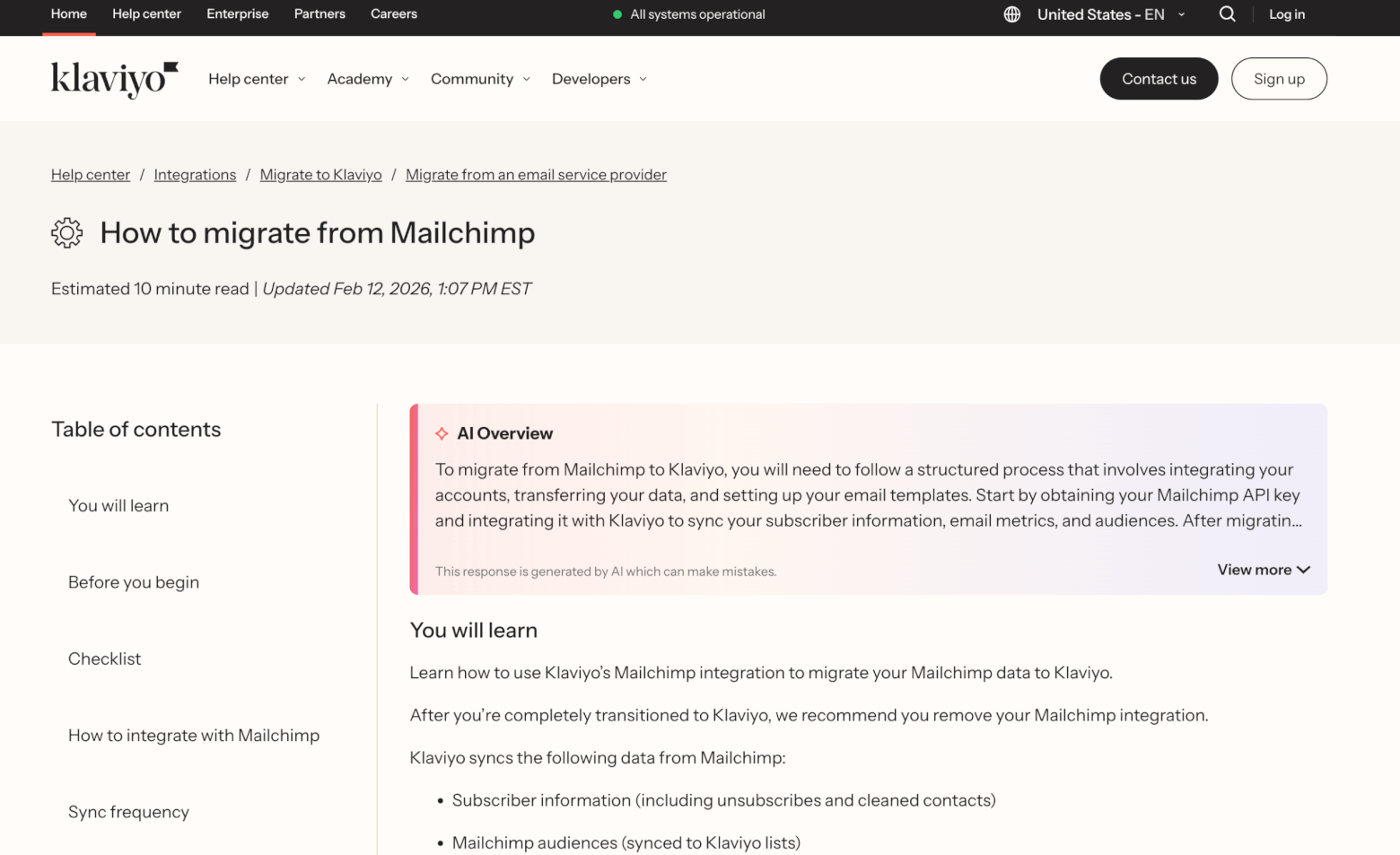
Ecommerce-focused Klaviyo offers a built‑in integration that helps you migrate your Mailchimp data into your new account, including subscriber profiles, audience lists, engagement data, and Mailchimp ratings. During the initial setup you can choose which audiences to import, and the integration will also pull in unsubscribes and cleaned contacts so suppression lists are preserved.
> Learn more about Klaviyo vs Mailchimp
> Check out our Mailchimp to Klaviyo migration guide
As you can see, each of these providers makes the transfer of your contact lists easier, but the specifics of what can be migrated (such as templates, engagement stats beyond opens/clicks, or ecommerce purchase history) vary depending on the ESP and integration limitations. Be sure to check what support is offered by your new ESP before you begin the process.
Most ESPs will also require you to manually recreate automations in the new system, because each platform’s automation logic and features differ. In the next step, I’ll show you what to look out for when doing this, but if you need some extra help, be sure to choose an ESP that offers personalized support for migrating workflows.
3. Review active campaigns and automations
Before cancelling your Mailchimp account, take time to properly shut down or transfer anything that’s still running. This prevents duplicate emails, broken workflows, or subscribers receiving messages from two platforms at once.
Here’s what to do:
1. Identify what’s currently live by going to Campaigns and check for any scheduled emails. Then head to Automations to see which customer journeys are active.
2. Cancel or pause any campaigns that are scheduled but haven’t been sent yet. If you plan to recreate them in your new ESP, note down the send date, audience, and content so you can replicate them accurately.
3. For each live automation, switch the status from Active to Draft or Pause. This ensures no new contacts enter the workflow and no further emails are sent.
4. Since automations cannot be exported directly, take screenshots or write down:
- Triggers
- Delays
- Conditions and splits
- Email content and timing
This will make rebuilding them in your new ESP much easier.
5. If you’re using Mailchimp forms, landing pages, or ecommerce triggers, disable them so new subscribers don’t continue entering Mailchimp automations after you’ve migrated.
6. Once your automations are rebuilt in the new ESP, double-check that:
- Mailchimp automations are fully turned off
- Signup forms now connect to your new ESP
- No integrations are still pushing contacts into Mailchimp
Steps to cancel your Mailchimp subscription
Cancelling your Mailchimp subscription is a straightforward process, but there are a few important steps to follow. Here's how to do it:
1. Go to Mailchimp’s login page and enter your credentials to access your account.
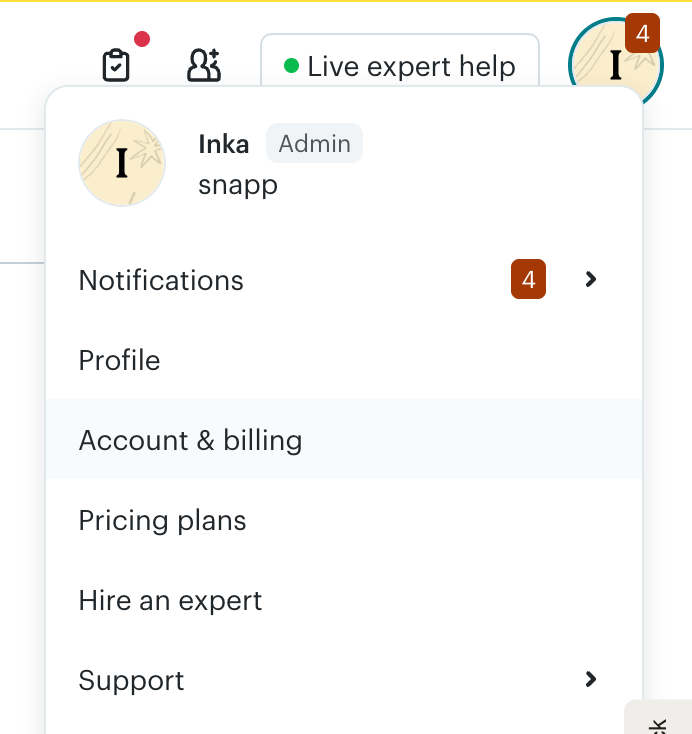
2. Once logged in, click on your profile icon in the top right corner, then select Account & Billing from the dropdown menu.
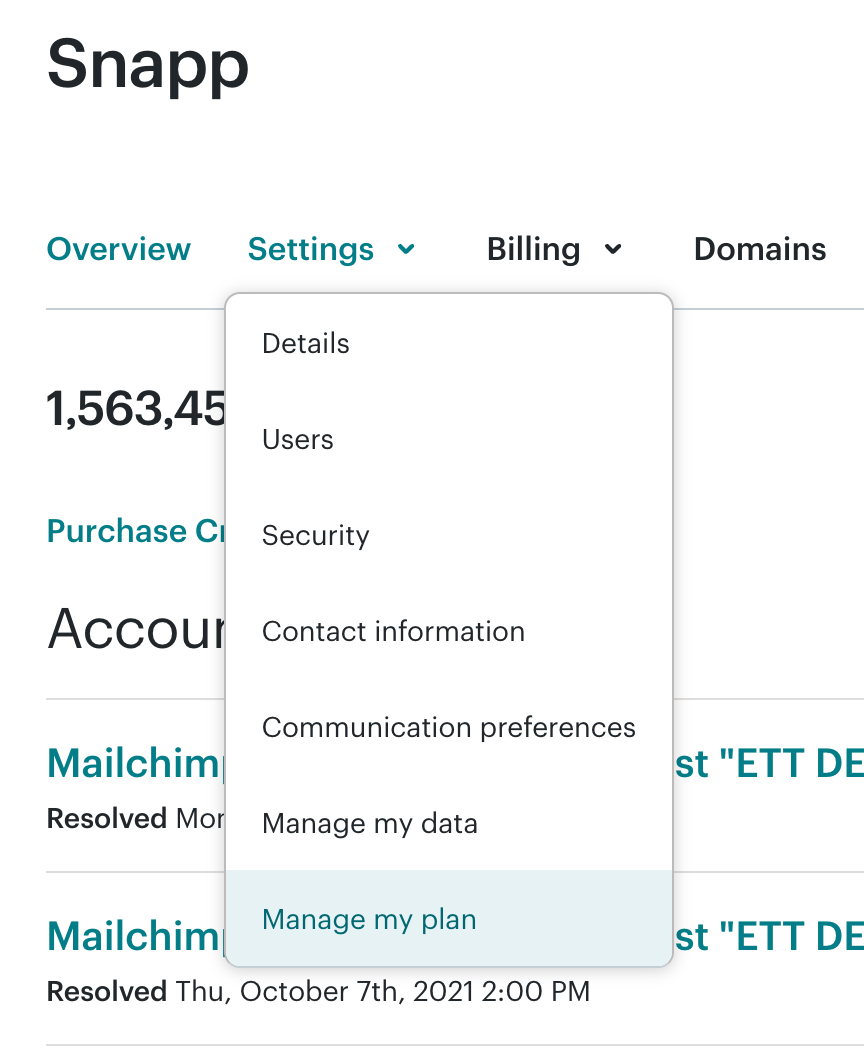
3. In the Account settings menu, click on Settings, then Manage my Plan. Here you’ll find details about your subscription plan.
4. Cancel or pause your plan:
- To cancel entirely, click on Permanently delete my account.
- If you're not ready to fully cancel but need a break, pausing your account is an option. Pausing will suspend your account temporarily without completely canceling it. This is useful if you want to take a break from using Mailchimp without losing your data.
5. After selecting the cancellation or pausing option, Mailchimp will ask you to confirm your decision. Review the details and click Continue to delete.
6. Enter your password and type in DELETE in the confirmation fields. Click Permanently delete.
7. You will receive an email confirmation of your action. Whether you cancel or pause your account, keep this email for your records. It will confirm the last billing cycle and any remaining features you have access to.
8. Before finishing, make sure to review your final billing date to avoid any unexpected charges.
After cancelling: What to do next
Once you've successfully canceled or paused your Mailchimp account, there are a few important next steps to ensure everything runs smoothly and your email marketing is uninterrupted:
Monitor for additional charges
Keep an eye on your billing statements to ensure no further charges appear after cancellation. Mailchimp may still charge you for the current billing period if you're on a monthly plan, so it's important to verify that you aren’t unexpectedly billed again. If you notice any discrepancies, reach out to Mailchimp support for clarification.
Update your email marketing strategy
Now that you’re no longer using Mailchimp, take some time to assess your email marketing strategy. This could be a good opportunity to refine your approach, explore new features with your new ESP, and make sure you’re maximizing the tools available to you. Update your welcome emails, campaigns, and automations as needed.
Set up your new ESP
Ensure your new email service provider (ESP) is fully set up with all the data you’ve migrated from Mailchimp. Test your contact imports, templates, and automations to make sure everything is working as expected. Don’t forget to integrate any e-commerce, CRM, or other tools you may need for seamless email marketing.
Will my deliverability be affected?
Switching to a new email service provider (ESP) can impact your email deliverability, especially in the early stages. There are several factors to keep in mind:
IP reputation
When you change ESPs, you’ll be assigned a new IP address. If your previous ESP had built up a positive reputation for its IP, emails sent from that IP were likely trusted by ISPs (Internet Service Providers). However, the new IP might not have the same established reputation, which could result in your emails being flagged as suspicious or delivered to the spam folder. This is especially true if you’re using a shared IP rather than a dedicated one.
To mitigate this, gradually warm up your new sending IP by starting with smaller email volumes and ensuring that your email authentication (SPF, DKIM, DMARC) is set up correctly.
Domain reputation
Your sending domain’s reputation can also affect deliverability. If your domain is new to the new ESP, ISPs may treat it with caution. It will take time to establish a positive reputation with your new ESP’s infrastructure. Be sure to authenticate your domain properly with SPF, DKIM, and DMARC to avoid emails being marked as spam and to improve the likelihood of inbox placement. You can book our authentication service if you get stuck setting this up.
Email engagement
Your email engagement history also plays a role in deliverability. If your Mailchimp account had a strong track record of high open rates, click-throughs, and low bounce rates, you probably saw better deliverability because ISPs trusted your content.
After switching, it’s possible you’ll see a temporary dip in engagement, which can affect deliverability. To maintain high engagement, make sure to keep your email list clean by removing inactive subscribers and regularly engaging with your active audience.
While switching ESPs can initially affect your deliverability, taking the right steps – such as warming up your IP, authenticating your domain, optimizing your content, and keeping your list engaged – will help minimize any negative impact and improve your long-term deliverability. You can also use inbox placement testing tools to monitor your deliverability rates and keep on top of any changes.
Conclusion
Switching from Mailchimp can feel like a big decision, but with the right approach, the process can be straightforward and ultimately beneficial for your business. Whether you're seeking a more cost-effective option, better features, or a simpler platform, there are plenty of great alternatives to Mailchimp that offer robust tools and migration support.
If you're ready to migrate from Mailchimp, check out our guides on:
> How to migrate to a new ESP (and what each platform offers in terms of migration support)
> How to migrate from Mailchimp to MailerLite
> How to migrate from Mailchimp to Klaviyo
After cancelling, make sure you monitor your deliverability closely, especially during the transition period. Every provider takes a slightly different approach to deliverability and offers different tools and controls, so it’s important not to assume everything will work the same way.
Keep a close eye on your key metrics, warm up your new IP address if required, and ensure your domain is properly authenticated to avoid any disruption to inbox placement. This is also a good opportunity to review your overall email marketing strategy. Take the time to refine your automations, update campaigns where needed, and clean up your list management practices.
Whatever your reason for leaving Mailchimp, switching platforms can be a positive reset. With the right setup and a clear plan in place, you’ll be well-positioned to keep growing your email marketing without missing a beat. Happy migrating!
The authors
Learn more about us

Our Methodology
This article has been written and researched following our EmailTooltester methodology.
Our Methodology