
Deciding to cancel a reliable, widely-used tool like Klaviyo is usually the result of smaller friction points building up over time. As your business’ workflow, priorities, or overall setup evolves, it’s only natural that you reach a point where it no longer fits the way you work.
Canceling a Klaviyo subscription isn’t always as simple as clicking a single button, though. Missing a step can lead to unnecessary headaches during the transition. We’ll walk you through the process so you can close things out properly and move forward without worrying about loose ends.
Why you might want to cancel Klaviyo
Klaviyo is a strong choice for Shopify merchants, but if you’re using other platforms or not running a traditional ecommerce store at all, it might not feel like the right fit.
Creators and other newsletter publishers will surely notice that Klaviyo is mostly built for supporting online stores, especially when it comes to monetization features (or lack thereof). There are no built-in tools for selling things like paid newsletters, memberships, or digital products. You’ll have to connect it to an existing store or use integrations to handle payments, subscriptions, and product delivery externally.
Pricing is another factor. While Klaviyo does offer a free plan, the paid plans start at slightly higher costs than similar tools like Omnisend.
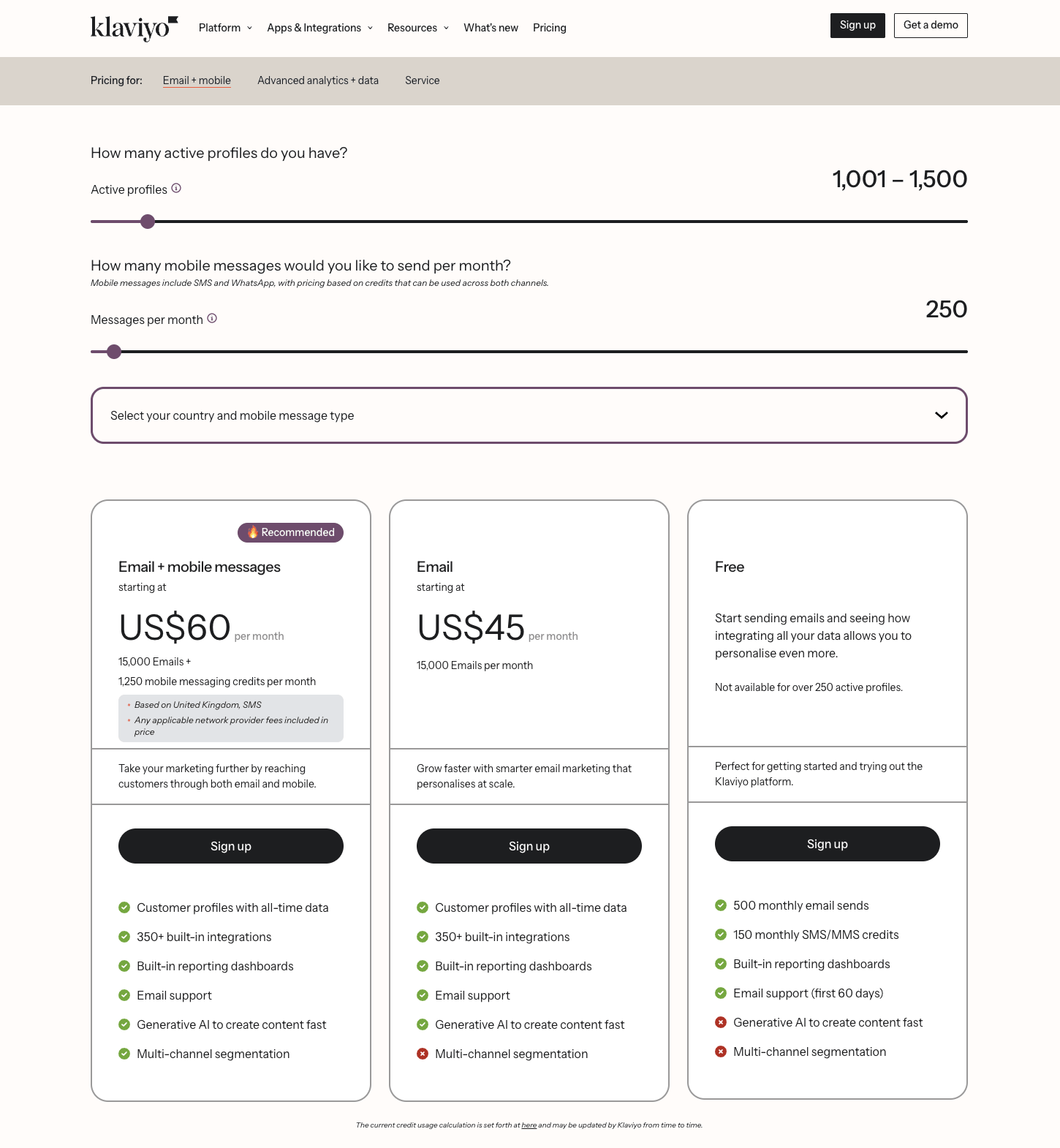
Plus, the pricing structure isn’t the most straightforward to wrap your head around. Costs climb quickly as your list grows, since billing is based on “active profiles.”
In Klaviyo terms, that includes anyone in your account who can be emailed. So, for example, if someone makes a purchase and enters your system (say through an abandoned cart flow or a post-purchase sequence), they will count toward your total, even if they’re not subscribed to your mailing list and actively engaging with your emails.
If you go beyond your current plan’s contact limit, Klaviyo automatically moves you to the next pricing tier at the start of your next billing cycle. This can catch anyone off guard.
Then there’s the learning curve. Klaviyo gives you a lot to work with, such as advanced segmentation, detailed flows, and predictive analytics. For beginners, however, this means more setup and moving parts to manage. If you’re just getting started, it can feel like more than you actually need.
All of this doesn’t make Klaviyo a bad tool. But depending on how you run your business, it might not be the most practical option for you.
Before Cancelling Your Klaviyo Subscription: Important Considerations
Before you head over to your billing settings and hit cancel, there are a few things worth sorting out first. Skipping them might not seem like a big deal in the moment, but it can lead to lost data, broken automations, or unnecessary headaches later on. A bit of prep now makes your tool migration a lot smoother.
Check your billing status
Head to Account Overview to see whether you’re on standard monthly billing or a manual/contract-based plan.
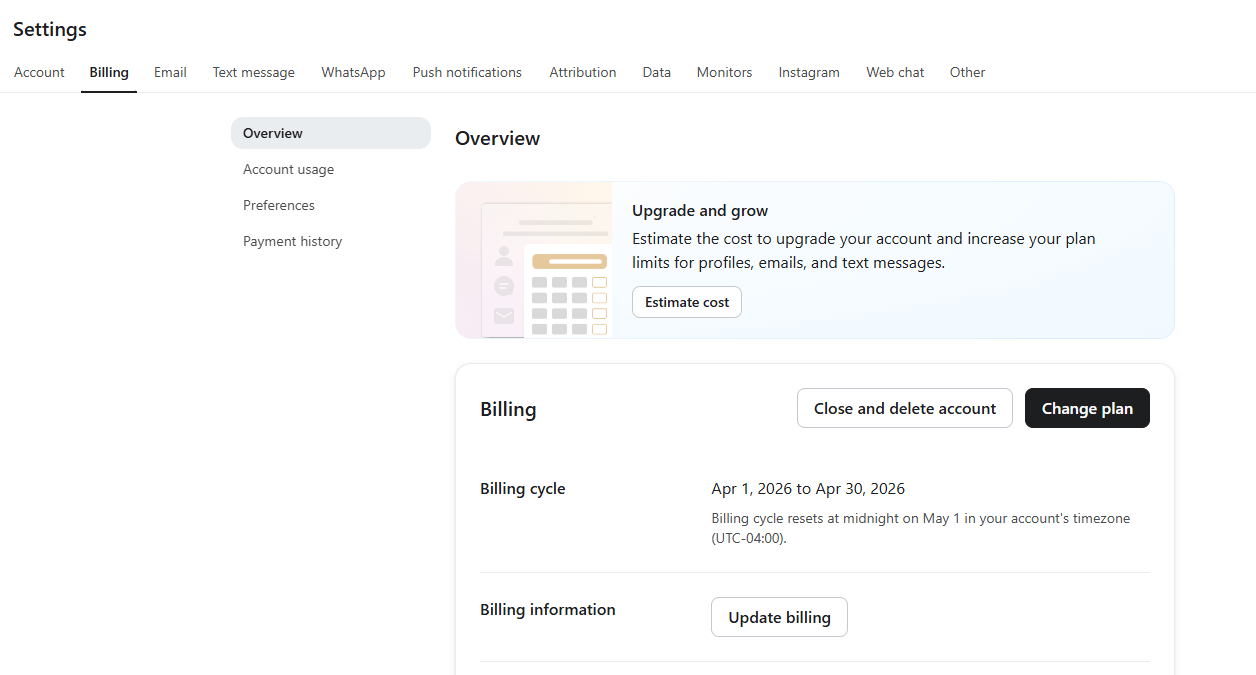
For those under standard plans, knowing your billing setup also helps you time things properly. Klaviyo bills upfront and doesn’t offer refunds for unused time. Canceling right after a new billing cycle starts means paying for time you won’t use.
If you’re on manual billing (i.e. your Klaviyo plans total $2,000+ a month or you have a custom plan in place), you won’t be able to cancel your subscription directly from the dashboard. You’ll have to contact Klaviyo’s support team to process the cancellation.
Export your data
Exporting isn’t available to every user by default. You’ll need the right permissions (Owner, Admin, or Analyst level access). If you don’t see the export option, you should get your access upgraded first.
Klaviyo doesn’t give you a single “export everything” option, unlike most platforms. You’ll need to download key assets manually, including:
- Contacts (lists and segments)
- Suppression lists
- Campaign analytics
- Flow performance data
- Email templates
Here’s step-by-step of how you manually download contact lists:
- Go to Audience → Lists & Segments
- Click into the list or segment you want to export
- Open the “Manage” dropdown
- Select “Export to CSV”
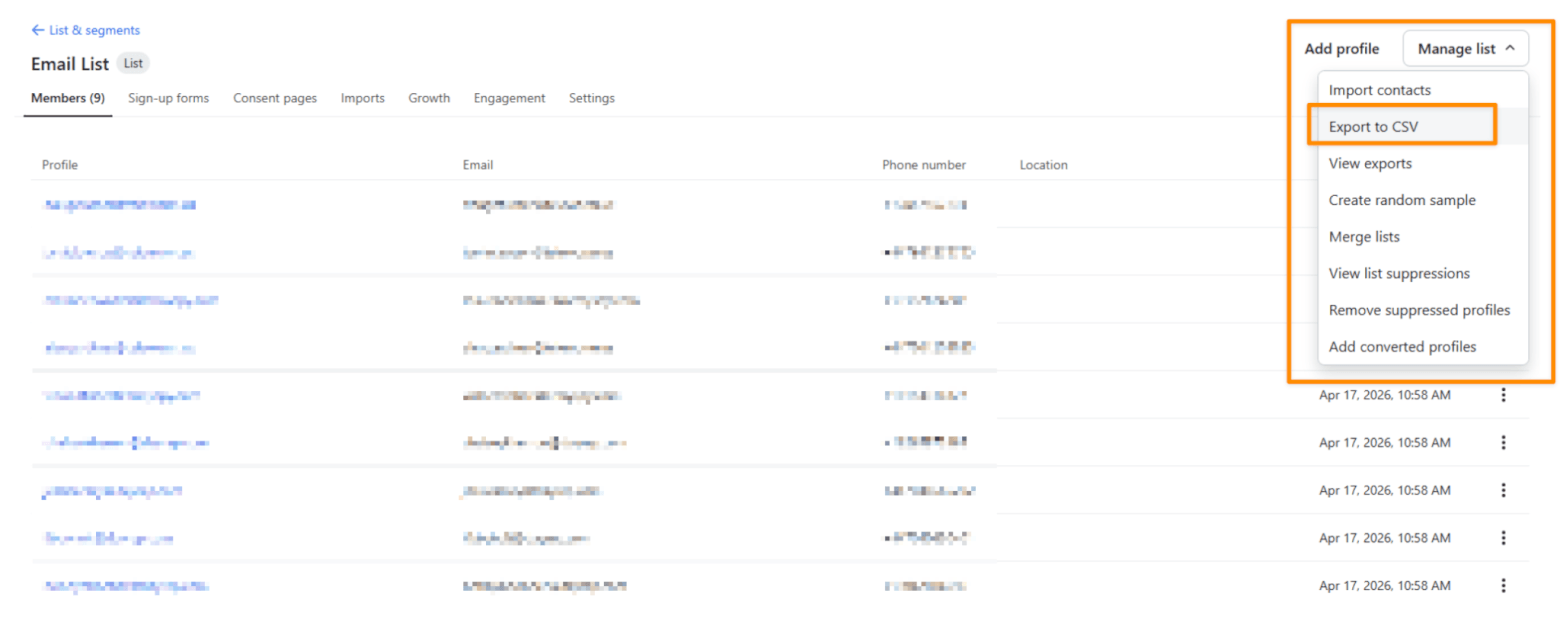
From there, you can choose whether to export all profile data or just specific fields. Klaviyo lets you export a wide range of useful data, including contact details, custom properties, and consent status. If you’re working with large lists, keeping it minimal can speed things up.
Turn Off Flows, Campaigns, and Forms
Klaviyo data, such as flow logic, event data, and certain behavioral insights, don’t transfer. If you plan to rebuild things elsewhere, document them separately.
Additionally, stopping flows and campaigns matters a lot when you’re moving away from Klaviyo. If they’re still active, you’re likely to end up with duplicate emails, mixed messaging, or subscribers hearing from two platforms at once.
Go through each of your flows, and switch it to Draft instead of deleting it. Choosing “Delete” removes everything permanently. If you need to reference the setup later, “Draft” keeps things paused without losing the structure.
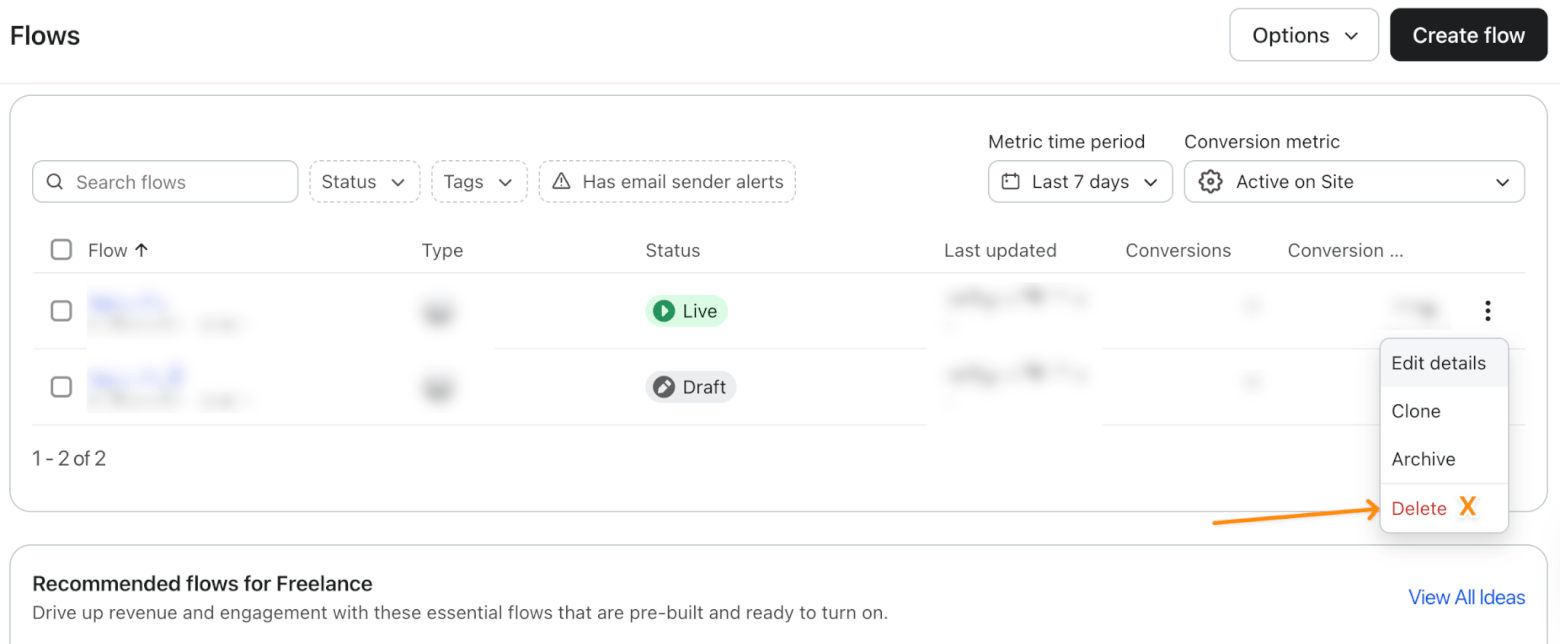
The option to set to “Draft” doesn’t show up in the dropdown. You’ll have to click on the specific flow and make changes from there.
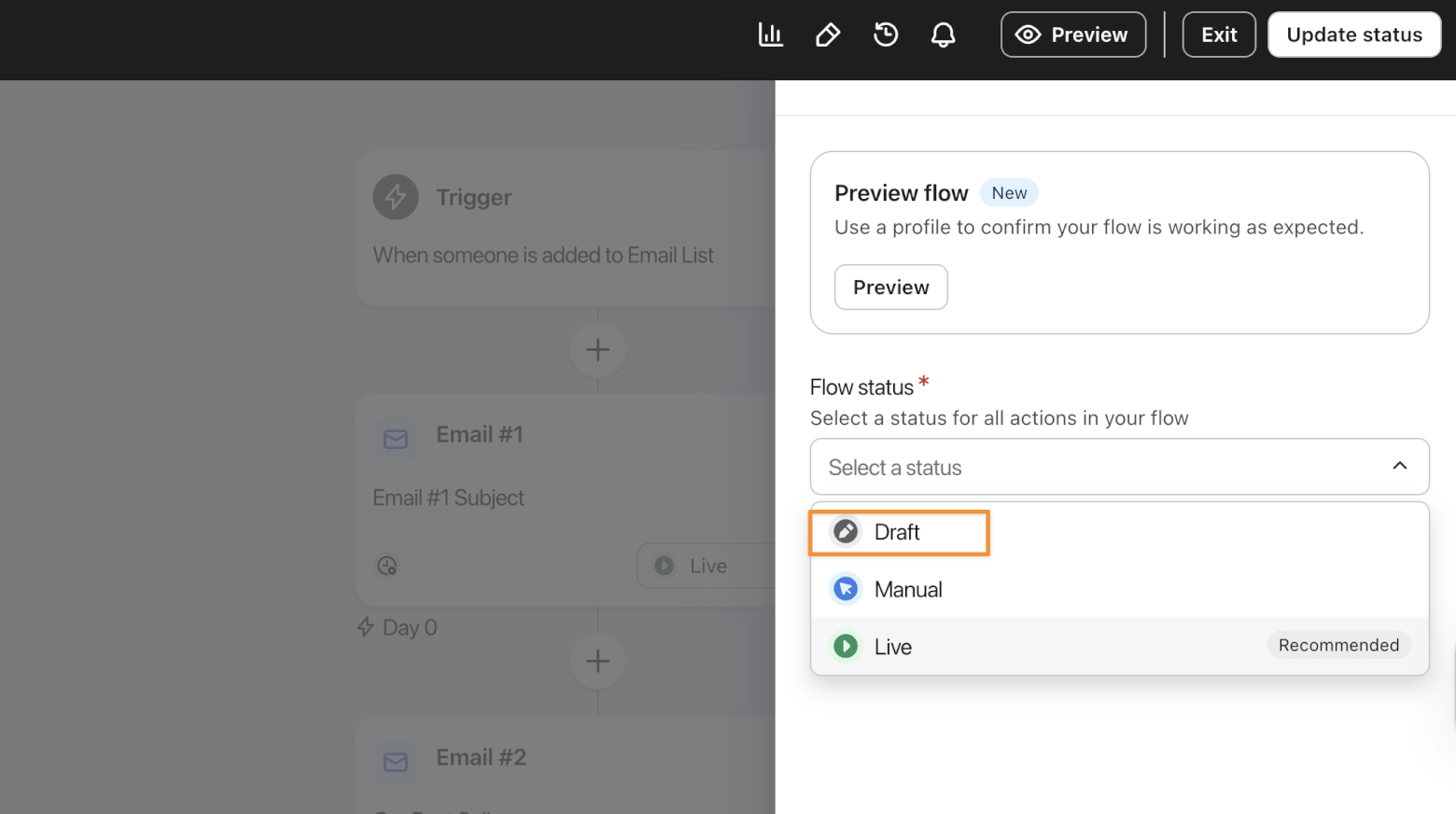
Next, check for any scheduled campaigns and turn them off, and disable your forms or pop-ups. Otherwise, new contacts can still enter flows while you’re in the middle of leaving.
Disconnect Integrations
Klaviyo is usually connected to your store or site, which means it’s constantly pulling in new data (customers, events, activity, etc.).
If you leave those integrations active, that data will keep syncing in the background while you’re trying to shut things down.
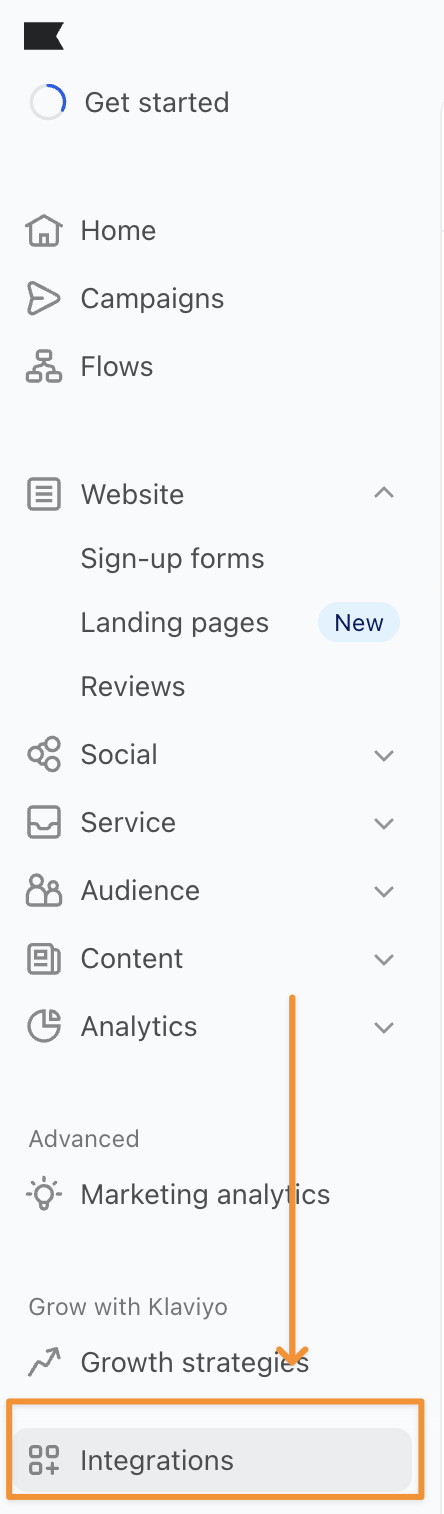
Before you cancel your Klaviyo account, go to Integrations, find your platform, and remove it. If you’ve connected multiple tools, repeat the same process for each one.
Cancelling Klaviyo Account: Three Different Cancel Paths
At the risk of sounding slightly naggy… here’s a quick reminder: only account Owners and Admins can make billing changes in Klaviyo.
If you’re a marketer, email specialist, or working in a more limited role, chances are you won’t have access to this. Either ask someone with the right permissions to handle it, or have your role updated before you can move forward.
One more thing worth reiterating: the processes below only apply if you’re on standard self-serve billing. If you’re on a manual billing plan or a longer-term contract, contact support instead.
Now that these caveats are out of the way, let’s talk about the three different ways to “cancel” your Klaviyo account. The quotation marks are doing some heavy lifting here, because not all of these options actually mean closing your account completely. Two of them just give you different levels of stepping back.
1. Cancel a channel/account
First things first, what you probably came here to do.
Klaviyo lets you turn off specific channels instead of shutting everything down at once. Since email and SMS are handled separately, you can cancel one while continuing to use the other without any issues.
When you cancel a plan, billing for that channel stops, and anything tied to it is switched off. The rest of your account stays as is.
When you cancel everything, your account stays accessible, your data remains available, but all sending and functionality is turned off.
The steps are the same, however, you’ll just have to pick which to cancel:
- Navigate to Billing.
- Click “Cancel Plan”
- Select the plan(s) you want to cancel, then click “Continue.”
- Choose a specific plan (Email or SMS) if you only want to cancel one channel
- Select “Cancel all plans” if you want to stop everything
- Select your reason(s) for canceling, then click “Continue.”
- Choose when you want the cancellation to take effect: after the billing period or immediately.
- Enter your account name to confirm
- Click “Cancel Plan”, then “Exit”
Note that what you choose in step 2 is where things branch out.
Keep in mind that if your SMS plan is part of what you’re canceling, any flow that includes an SMS message (including emails!) will be fully disabled.
Step 5 is also a critical step. If you cancel at the end of your billing cycle, which Klaviyo recommends, everything (campaigns, flows, and integrations) continues running until your final billing date. If you cancel immediately, everything stops right away. Flows are set to draft, scheduled campaigns won’t send, integrations are disabled, and billing ends.
2. Downgrade to free
Downgrading to free is a great option if you think you’re not making the most out of the paid features. It lets you keep your account active, and you only have to stay within the sending limits.
However, it’s not available for profile-enforced accounts, meaning your number of active profiles has grown beyond what the free plan allows (which is currently only 250 active profiles). You’ll need to clean up your list before downgrading becomes an option.
Klaviyo doesn’t offer a direct “switch to free” button. Instead, you’ll need to cancel first, then reactivate on the free plan. It’s simple enough, but not exactly a straight line.
- Go to Billing
- Click “Cancel Plan”
- Select the plan(s) you want to cancel
- If you cancel just one channel, it will move to the free version automatically
- If you cancel all plans, your account will stop sending entirely
- Complete the cancellation steps (same process as above)
Once you’ve canceled all plans but want to continue on the free version, you can reactivate your account:
- Open the Preferences tab
- Scroll to “Reactivate your account”
- Click “Reactivate to free”
- Confirm your selection
Once you’re back on the free plan, you’ll regain access to your account and data. You’ll just need to turn flows back on, reschedule any campaigns, and reconnect integrations if you disabled them earlier.
3. Close account
So you’re really sold on the fact that Klaviyo isn’t what you’re looking for. Closing your account is the final option. And yes, this step is permanent.
Once your account is closed, your data is gone for good. So before you go ahead, double (or triple) check that you’ve exported everything you might need later.
Only owners are approved to take this step. Here’s how to close your Klaviyo account:
- Go to Billing
- Follow the steps based on your plan:
- If you’re on a paid plan:
- Click “Cancel Plan.”
- Select “Close Account.”
- Click “Continue.”
- If you’re on a free plan:
- Click “Close Account” directly.
- If you’re on a paid plan:
- Select your reason(s) for leaving, then click “Continue.”
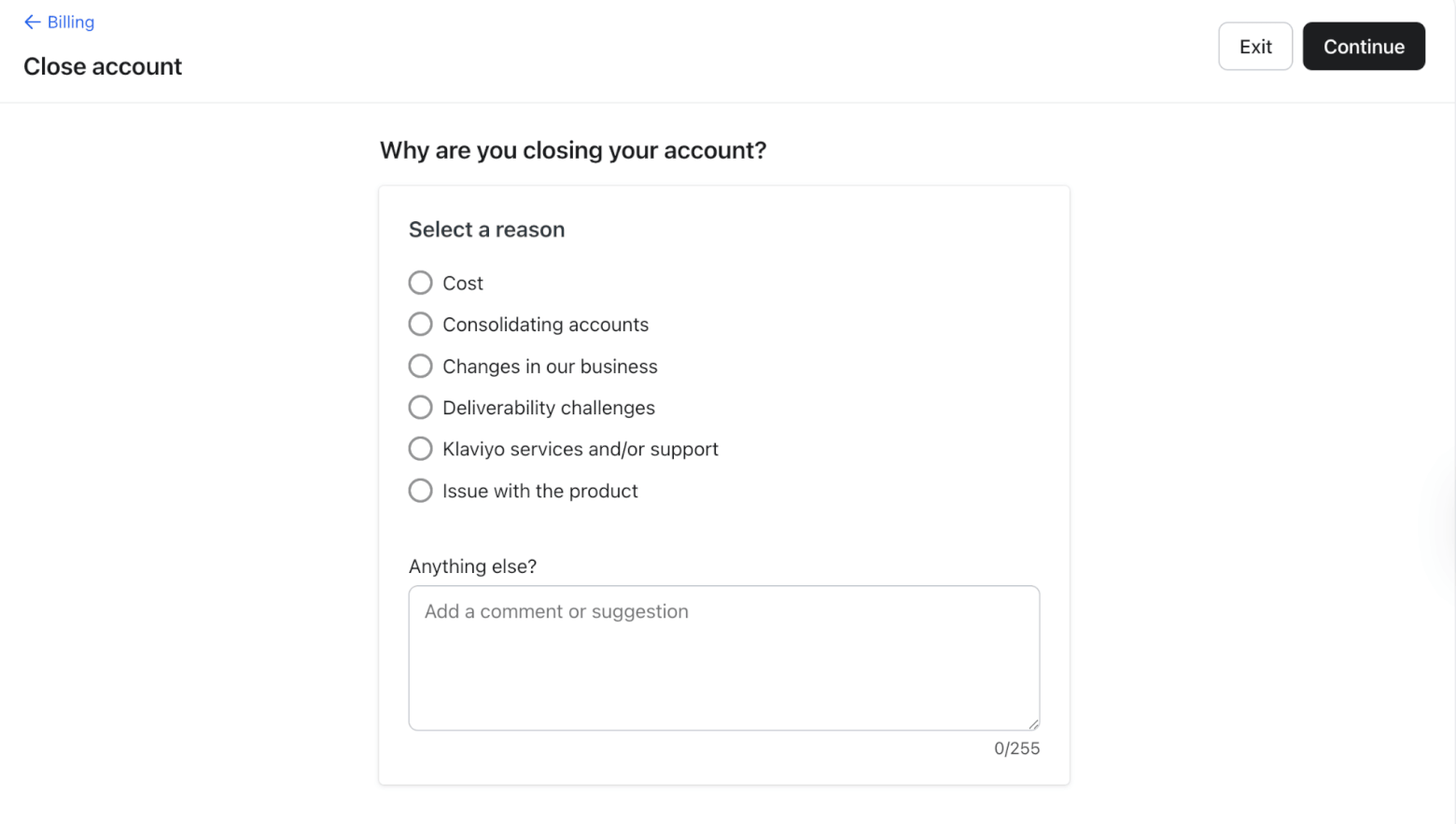
- Export any remaining data you want to keep (if you haven’t already), such as:
- Campaign analytics
- Flow analytics
- Profiles
- Templates
- Click “Continue”
- Enter your account name to confirm
- Click “Close account”, then select “Exit account”
Once you complete these steps, you’ll be logged out immediately, and your account will no longer exist.
Here’s a summary of what each option actually does inside Klaviyo to help you make the best next step for your account:
| Downgrade to free | Cancel a plan (Email/SMS) | Cancel account | Delete account | |
|---|---|---|---|---|
| Best when you want to… | take a step back without losing setup | turn off one channel | pause everything while maintaining data | leave Klaviyo completely |
| Cancel future payments | YES | YES (for that plan) | YES | YES |
| Account access | YES | YES | YES | NO |
| Data availability | YES | YES | YES | NO |
| Send SMS or email | YES (but limited) | YES (for that channel) | NO | NO |
| Active flows | YES | UNLIMITED (depends on channel) | NO | NO |
| Active integrations | YES | YES (if channel still active) | NO | NO |
| Reactivation required | YES | NO | NO | NO |
Migrating from Klaviyo? Here’s how these ESPs handle migration
Chances are, you’ve already started reviewing alternatives before deciding to move on from Klaviyo.
Some platforms, like Mailchimp, require a more manual approach when migrating from Klaviyo. Others, like the following platforms, offer built-in tools or hands-on support to make the transition smoother:
ActiveCampaign
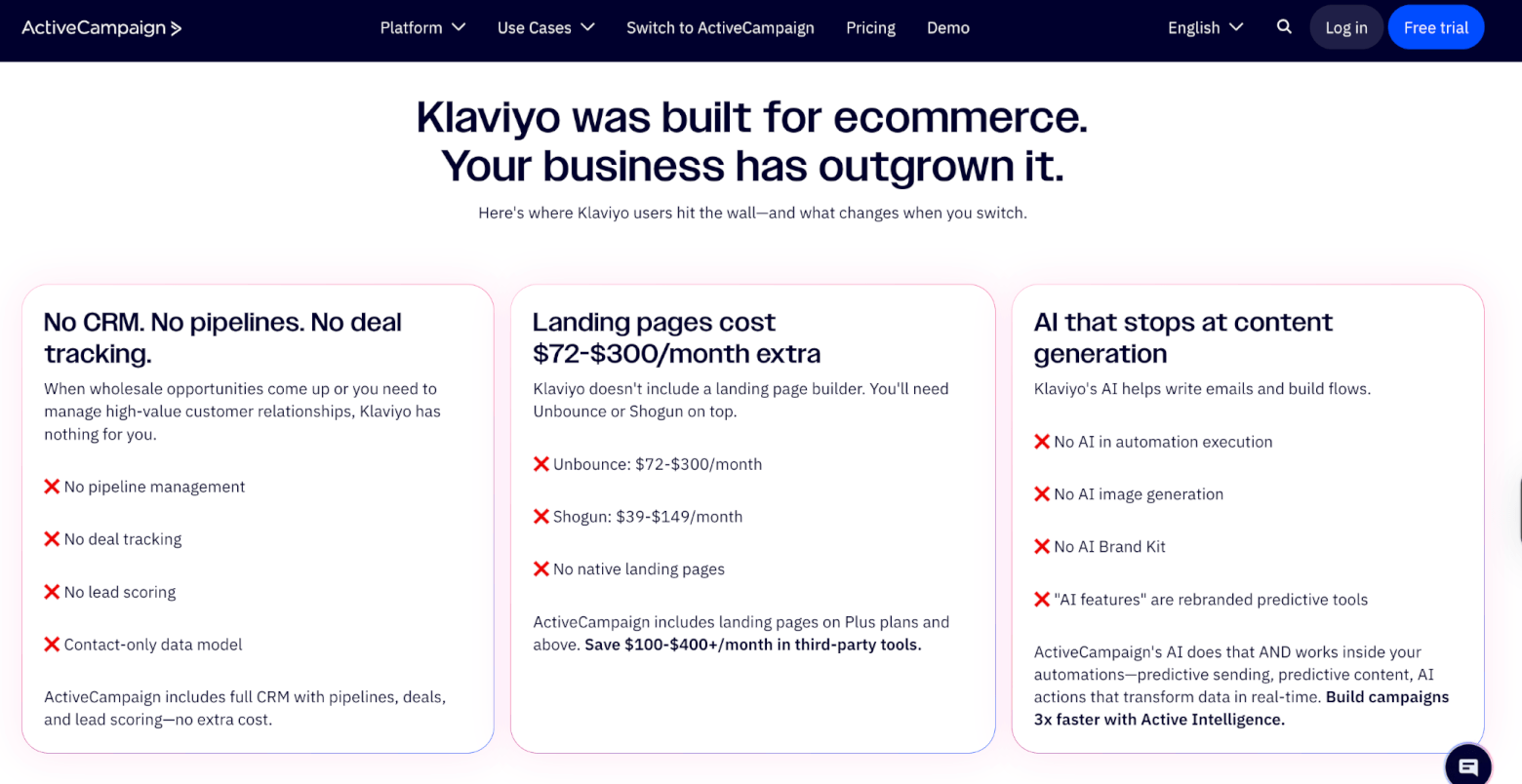
ActiveCampaign is a strong option for businesses that want powerful automation without Klaviyo’s ecommerce-heavy setup (although it’s perfectly capable of supporting ecommerce flows too). It’s especially popular with SaaS, service-based businesses, and teams that want deeper CRM-style workflows.
ActiveCampaign offers free migration support across all plans, with more hands-on help available as you move up tiers. Higher-tier customers (Plus, Pro, and Enterprise) get access to one-on-one onboarding and a dedicated migration team.
They can help move over contacts, email templates, and automations, and the process typically takes around 1–2 weeks.
Find out whether it’s a good idea to migrate from Klaviyo to ActiveCampaign by reading our ActiveCampaign vs Klaviyo guide.
Omnisend
Omnisend is one of the closest alternatives to Klaviyo, especially for ecommerce brands.
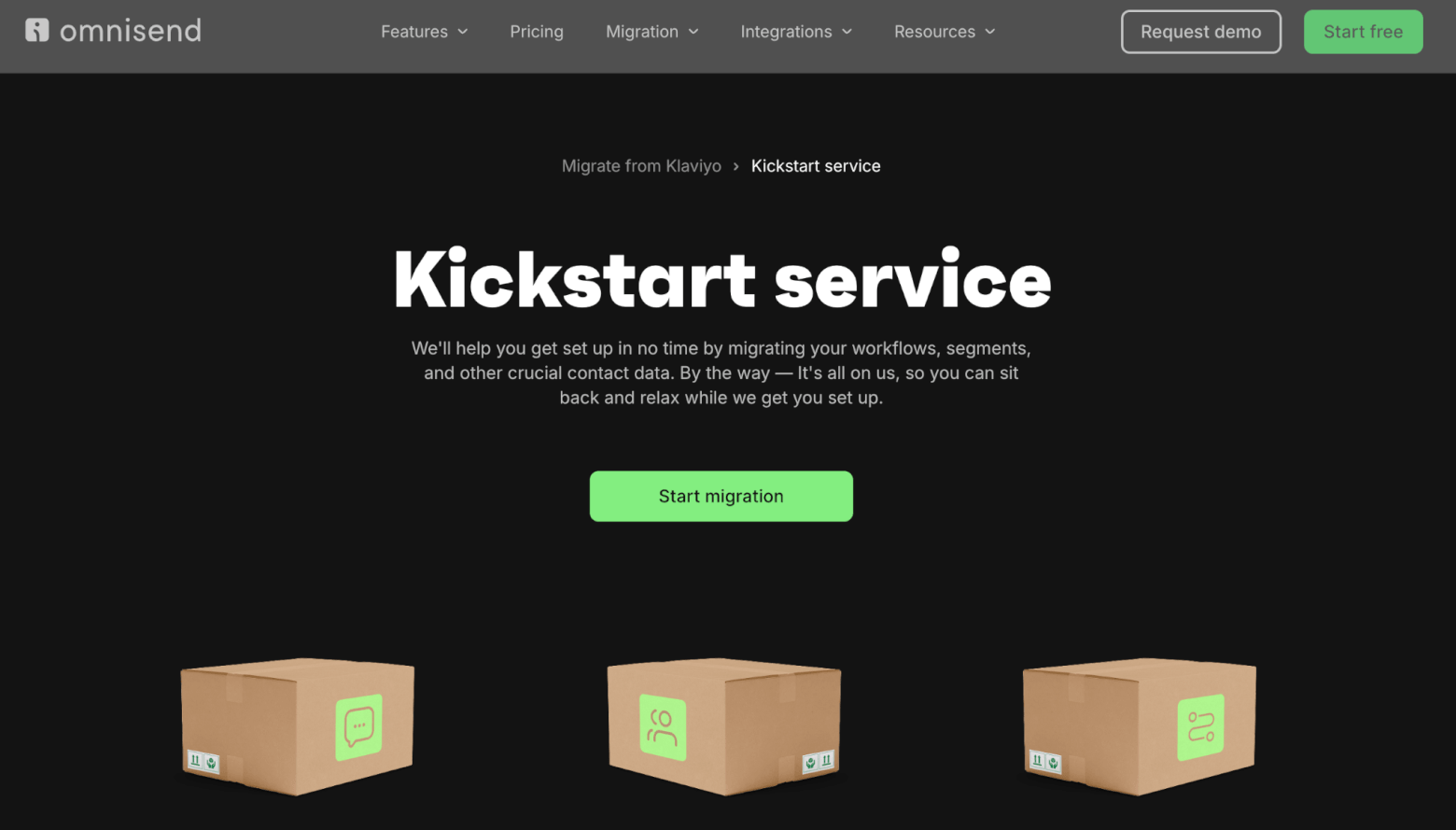
If you decide that switching from Klaviyo to Omnisend is the right move, you have two options: handle the migration yourself or use their Kickstart service.
If you go the manual route, Omnisend provides built-in import tools that let you bring over your contacts along with key details like tags, custom fields, and engagement data. When connected to your store, it can also pull in ecommerce data like orders, products, and carts.
The Kickstart migration service is free for users on plans above $250/month. If you’re on a lower-tier plan, you can upgrade to access it. With this service, the Omnisend team helps recreate your setup, including:
- Contact migration
- Three workflow recreations — you will have to provide the templates
- Five segment builds
- 3 signup forms recreations
- One master template recreation
- SMS toll-free number verification
The whole process typically takes around 5 business days from the moment you submit your request — about 1–2 days for the Omnisend team to get in touch, followed by up to 3 days to complete the migration itself.
Learn more about migrating off of Klaviyo to Omnisend in our Omnisend vs Klaviyo guide.
Brevo
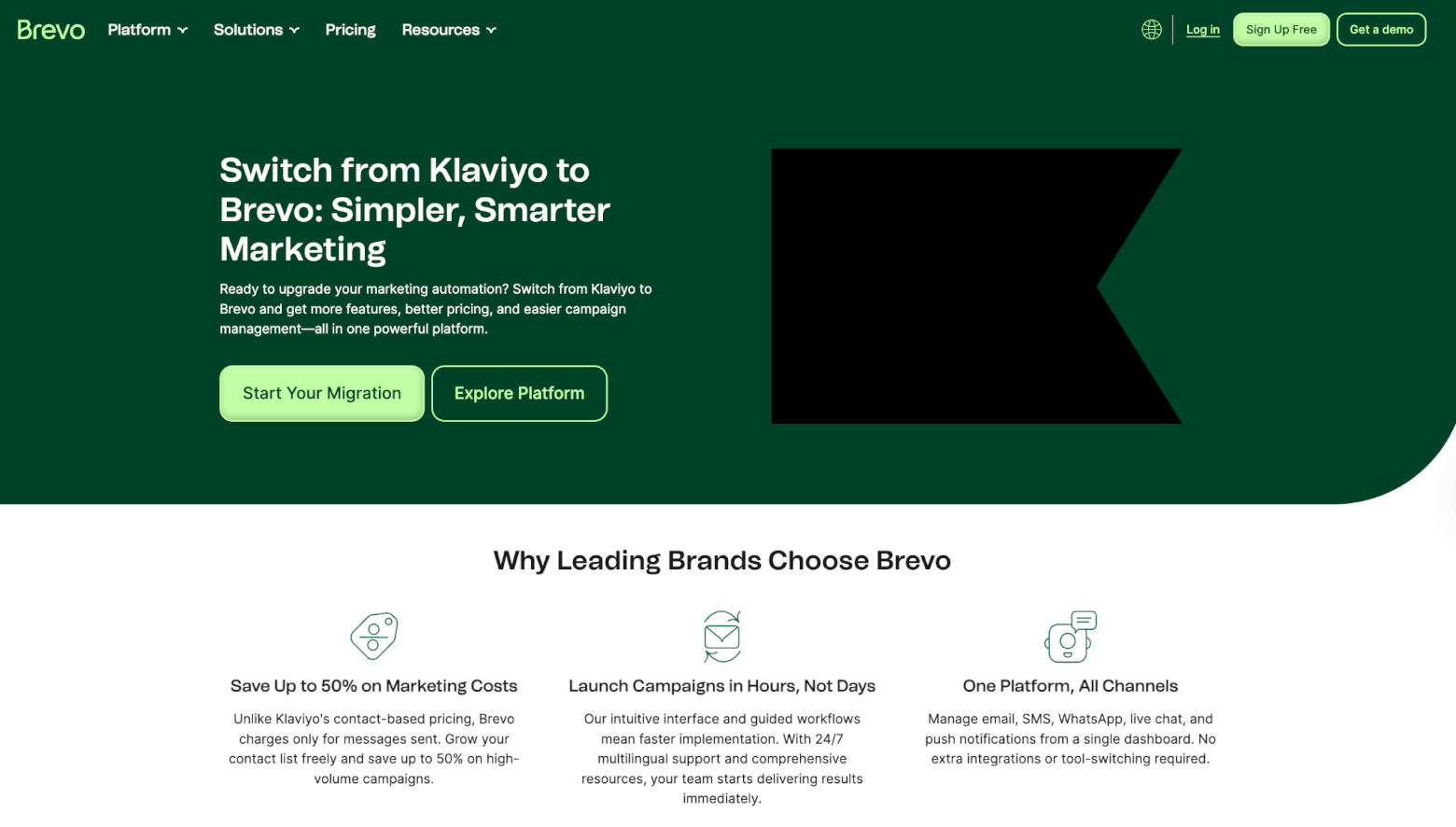
Brevo is a more affordable, all-in-one option that works well for small businesses looking for email, SMS, and CRM features in one place.
After canceling your Klaviyo account, Brevo can help you move your data over with 24/7 multilingual support, detailed guides, and migration assistance. Most businesses can complete a basic setup within a few hours using their tools.
They also offer import features designed to securely transfer your contacts and key data from Klaviyo without much friction.
See whether it makes sense to migrate from Klaviyo to Brevo in our Brevo vs Klaviyo guide.
MailerLite
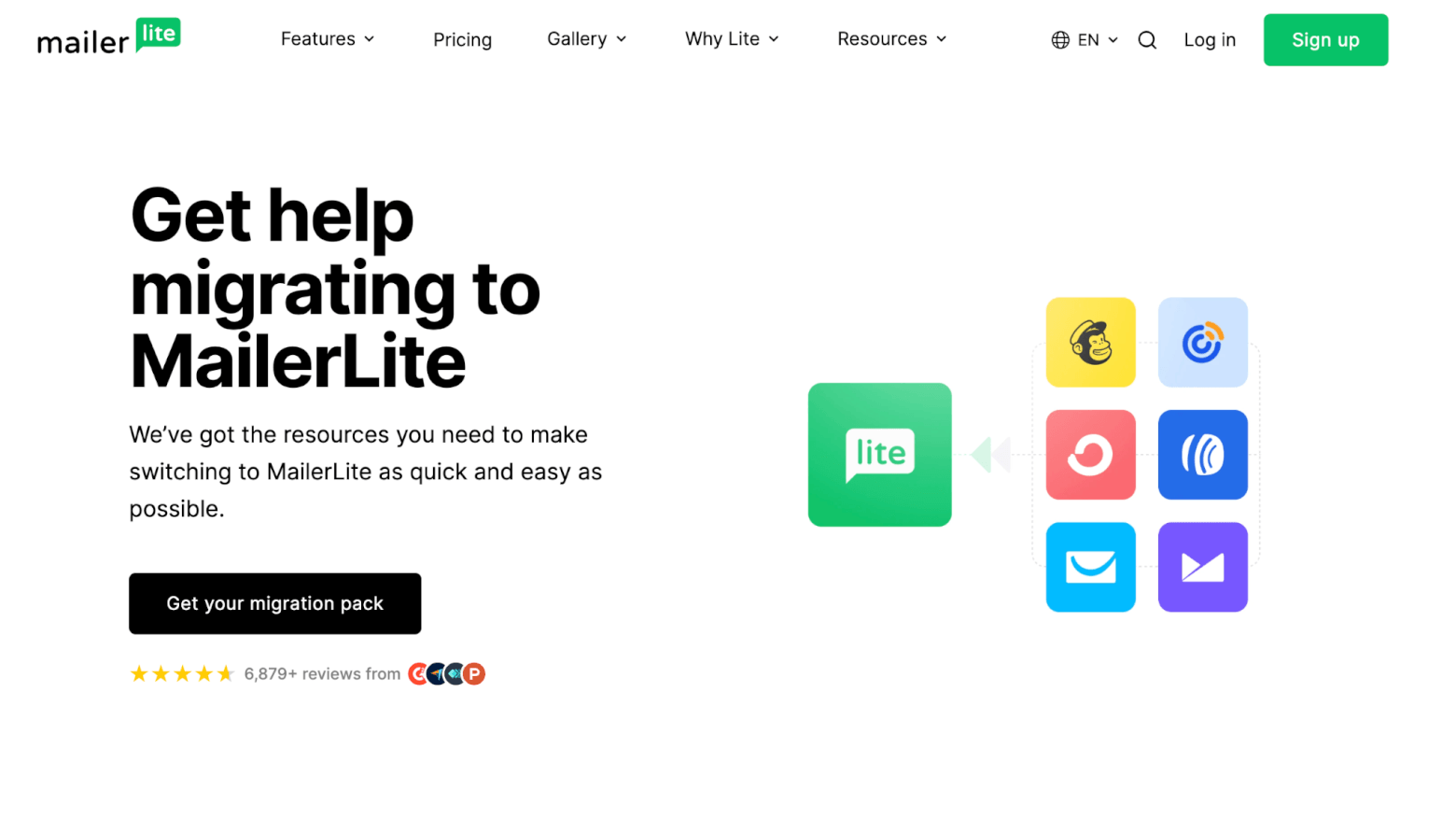
MailerLite is a great fit if you’re looking for something simpler and more affordable. However, their migration support is less hands-on than what you’d find with other providers.
Users switching from other ESPs can request a Migration Resource Pack, which contains links to their most useful resources. These can help guide you through the process of migrating off of Klaviyo and getting set up on their platform.
You can also find these tutorials on MailerLite’s website, but it’s helpful to know that they gather everything and organize it for you in one place, so you don’t have to search for it yourself.
Find out if it’s worth it to migrate from Klaviyo to MailerLite in our MailerLite vs Klaviyo blog post.
Ready to make your Klaviyo exit?
Switching from Klaviyo can feel like a big step, but with the right approach, it’s more straightforward than it seems. After canceling, keep an eye on your deliverability during the transition. Performance can change when you move platforms, so don’t assume everything will carry over as is.
Monitor your key metrics, warm up your sending if needed, and make sure your domain authentication (SPF, DKIM, DMARC) is properly set up.
Also, use the migration as a clean slate to reset. Clean your list, tighten up your automations, and make sure your overall setup reflects how you actually want to run things moving forward. Don’t just aim to get back to where you were. The transition should inspire you to come out with a setup that’s easier to manage and performs better over time.
If you're ready to migrate, check out our complete guide on how to migrate to a new ESP.
The authors
Learn more about us

Our Methodology
This article has been written and researched following our EmailTooltester methodology.
Our Methodology